
The editor form
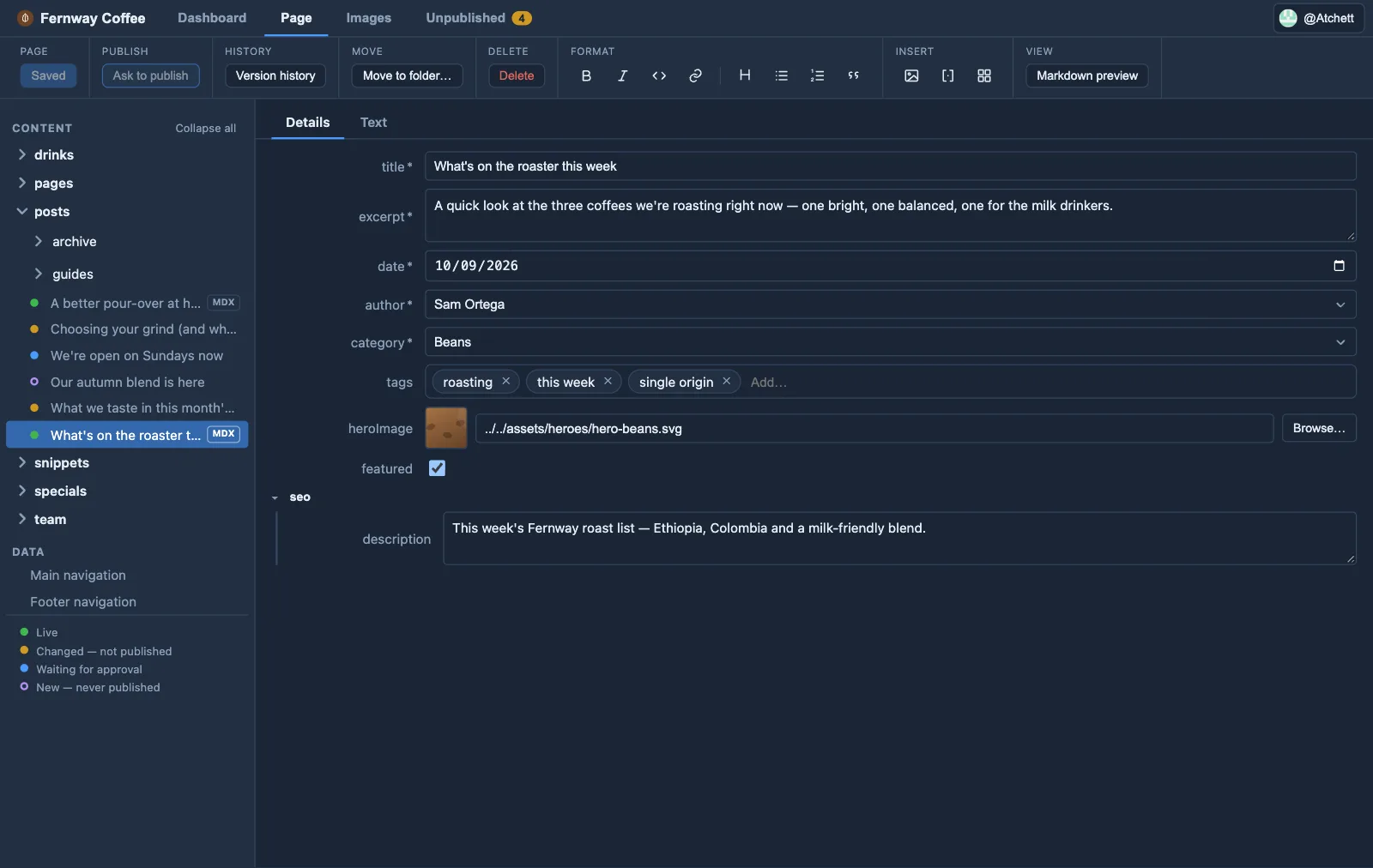
Orbit reads the Zod schema you already wrote and turns each field into a form control — editors never see raw YAML.
| Zod | Editor control |
|---|---|
z.string() | text input (multi-line if long) |
z.number() | number input |
z.boolean() | checkbox |
z.date() | date picker |
z.enum([...]) | dropdown of the options |
z.array(z.string()) | chips — type and press Enter to add one |
z.array(image()) | gallery of thumbnails, with + Add image |
z.array(z.object({...})) | cards — one line each, opening to edit |
z.array(...) (anything else) | ordered list with add / remove / reorder |
z.object({...}) | nested, collapsible group |
image() | image field with thumbnail + Browse/Upload |
Fields appear in the order you declare them in the schema, so put the ones
editors care about most (usually title) first.
Details and Text
Section titled “Details and Text”Each page opens with tabs at the top: Details (the form) and Text (the
Markdown editor, with its preview). Each gets the whole window, so a page with
lots of fields never squeezes the writing. Orbit remembers which tab you used
last. It switches for you when it helps: a field that needs fixing brings
Details forward, and the Format and Insert buttons bring Text forward.
A page with no text yet has + Add body text on its Text tab — new pages
included. Whether the site actually shows a page’s text depends on its
templates, which Orbit doesn’t read, so it goes by the section’s other pages:
when none of them has text, the Text tab says so before the button, so an
editor checks first. Developers: if a section’s pages never have text, set
bodyless: true for it in orbit.config.yaml — it then shows Details
alone.
Each kind of list gets a control that suits it:
- Words or numbers (tags, categories) are chips. Type and press Enter (or a comma) to add one, ✕ to remove it, and Backspace in the empty box to take the last one back for editing.
- Images are a gallery of thumbnails. Click one to see it larger, ← → to move it, ✕ to remove it, and + Add image to pick another.
- Groups of fields (FAQs, team members) are cards: one line each — the item’s first text field, like the question — that opens to edit. ↑ ↓ reorder and ✕ removes. A new card opens ready to fill in, and a card with a field to fix opens by itself and is outlined.
A gallery or a list of cards gets its own tab inside Details, beside General, showing how many items it has — so FAQs and photos don’t bury the simple fields. A field to fix brings its tab forward, and the tab shows how many need fixing.
Required vs optional
Section titled “Required vs optional”A plain field is required — marked *, and it blocks save until filled.
.optional(), .default(...), and .nullable() make it optional.
Accessibility tips
Section titled “Accessibility tips”When a page has an image with no description (alt text) or a heading that skips a
level (say, ## straight to ####), a red accessibility tips note appears
above the page. Open it and click a line number to jump to the spot — Orbit
switches to the Text tab for you. Tips are advice only — they never stop you
saving.
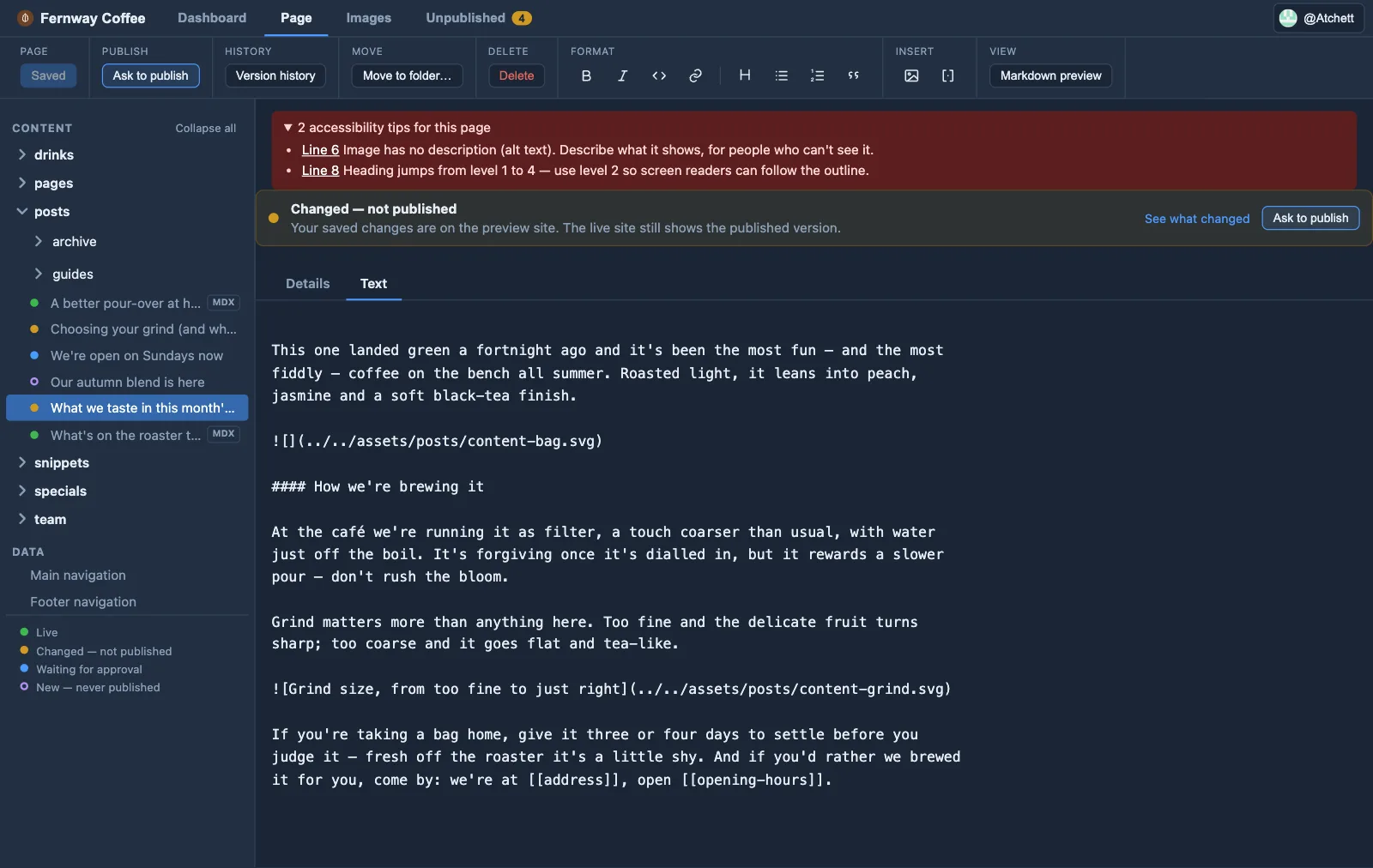
Orbit assumes your layout shows the page title as the main heading, so headings in
the body should start at ##.
Write editor-friendly schemas
Section titled “Write editor-friendly schemas”- Prefer enums over free strings where the set of values is known — editors get a safe dropdown instead of a place to make typos.
- Use clear field names and sensible
.default(...)s. - Use
image()for images so editors get a thumbnail and picker.
The more your schema says, the better the form Orbit can build from it. The schema is a standard Astro collection schema — see Set up a collection and Astro’s collection schema reference.